How to Set Up Kimi CLI, Claude Code, Roo Code, and OpenClaw
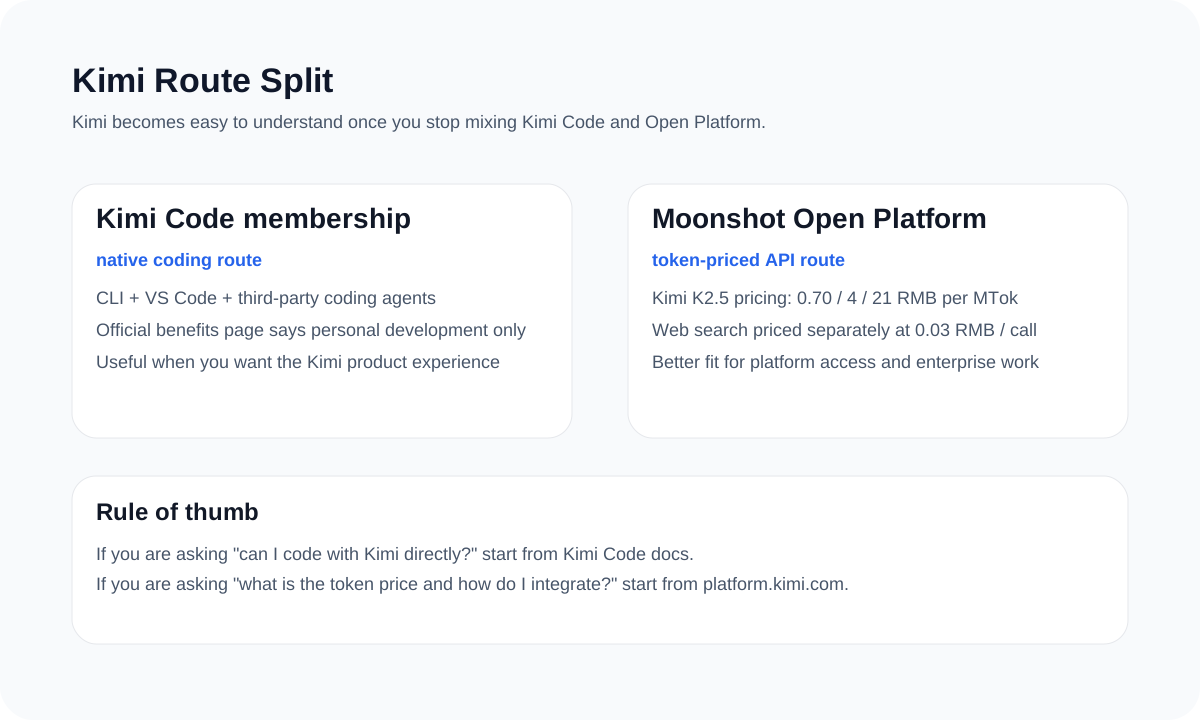
If you searched for Kimi CLI install, Kimi Claude Code setup, Roo Code with Kimi, or Kimi K2.5 OpenClaw, remember this first: Kimi Code and Moonshot Open Platform are different products with different keys and endpoints. Once that split is clear, the rest of the setup becomes straightforward.
- Kimi CLI belongs to the Kimi Code route, not the Moonshot Open Platform route.
- Claude Code and Roo Code are best explained through Kimi Code, while OpenClaw is best explained through the K2.5 platform guide.
- The most common Kimi setup failure is still mixing Kimi Code keys, China Open Platform keys, and global Open Platform keys.
Before any Kimi setup, split the product in two
Kimi is easy to miswrite because it does not behave like a single unified product page. Kimi Code is a coding product with Kimi CLI, VS Code, and third-party coding-agent support. Moonshot Open Platform is the API platform, where `kimi-k2.5` pricing, tool fees, and platform-side agent docs live.
That means the right answer depends on the query. “Kimi CLI install” is a Kimi Code question. “Kimi K2.5 OpenClaw setup” is a Moonshot Open Platform question. Good Kimi guides say that immediately instead of making readers discover it after they hit a key or endpoint error.

Official screenshot
Kimi Code is presented as a membership-style coding product
The official Kimi Code page frames the route around coding workflows, official clients, and membership access rather than raw token billing.
- Useful for readers searching for Kimi Code plans, Kimi CLI, or Kimi Code membership.
- A strong visual reminder that Kimi Code and Moonshot Open Platform are different routes.
Source: Kimi Code page.

Official screenshot
The K2.5 API price table lives on the Moonshot Open Platform side
This official pricing page is the cleanest source for cached input, input, and output pricing. The docs UI may default to Chinese depending on region, but the table is still the source-backed pricing reference.
- Best visual proof for readers asking about `kimi-k2.5` token cost.
- Pairs well with the Kimi Code page to show why membership pricing and API pricing should not be mixed.
Source: Official Kimi K2.5 pricing.
Which official Kimi doc covers which workflow
| Workflow | Best official source | Why it belongs there | Common mistake |
|---|---|---|---|
| Kimi CLI | Kimi Code getting started | It is part of the Kimi Code product | Looking for it on the Open Platform pricing side |
| Claude Code via Kimi | Kimi Code third-party agents guide | This is a Kimi Code compatibility route | Using Open Platform keys or endpoints instead |
| Roo Code via Kimi | Kimi Code third-party agents guide | The official page provides the route and model fields | Mixing it with generic Open Platform examples |
| OpenClaw via K2.5 | Moonshot Open Platform OpenClaw guide | This is the official platform-side route | Explaining it as if it were a Kimi Code membership flow |
Kimi CLI, Claude Code, Roo Code, and OpenClaw quick setup
Kimi CLI
Install the CLI, enter your project, run `kimi`, then use `/login` and `/init` on the first pass. This is the cleanest answer for users searching “how to install Kimi CLI.”
Claude Code via Kimi Code
Use the Kimi Code route and point Claude Code at `https://api.kimi.com/coding/`. This is not the same as using Open Platform keys or the Moonshot Open Platform base URLs.
Roo Code via Kimi Code
Use the OpenAI-compatible route from the Kimi Code docs. The official page points to `https://api.kimi.com/coding/v1` with the model `kimi-for-coding`.
OpenClaw via K2.5
Use the official Moonshot Open Platform OpenClaw guide. In the onboarding flow, pick the Moonshot AI (Kimi K2.5) route and use the platform-side API key that matches your region.
curl -LsSf https://code.kimi.com/install.sh | bash
kimi --version
cd your-project
kimi
/login
/initANTHROPIC_BASE_URL=https://api.kimi.com/coding/
ANTHROPIC_AUTH_TOKEN=YOUR_KIMI_CODE_KEYProvider Type: OpenAI Compatible
Base URL: https://api.kimi.com/coding/v1
API Key: YOUR_KIMI_CODE_KEY
Model: kimi-for-coding
Context Window: 262144
Max Output Tokens: 32768The mistakes readers make most often
- Explaining Kimi Code and Open Platform as if they were one product with one key.
- Using Kimi Code documentation to describe the OpenClaw route.
- Mixing `platform.kimi.com` keys with `api.moonshot.ai`, or global keys with `api.moonshot.cn`.
- Ignoring the Kimi Code personal-development boundary in a public tutorial.
If the route is clear, the rest of the Kimi setup article gets much easier
Split Kimi Code and Open Platform first, then write the tool-specific steps under the correct branch.
Sources and official links
Frequently asked questions
Does Kimi have an official CLI?
Yes. Kimi CLI is an official Kimi Code route with its own getting-started docs.
Should I explain OpenClaw as part of Kimi Code?
No. The strongest official OpenClaw guidance currently sits on the Moonshot Open Platform side.
What is the most important line to get right in a public Kimi setup article?
Kimi Code and Moonshot Open Platform are different routes with different keys, endpoints, and usage boundaries.